
A Practical Buying Guide for 2026
Buying a new laptop shouldn’t feel like decoding a foreign language. How to Choose the Right Laptop between processor generations, RAM configurations, and storage acronyms, it’s easy to feel paralysed by choice. The good news? You don’t need an engineering degree to make a smart purchase — you just need to know which specs actually matter for your specific needs.
This guide breaks down every major component you’ll encounter while shopping, from the processor that powers your daily tasks to the operating system that shapes your entire experience. By the end, you’ll know exactly what to look for and, just as importantly, what you can safely ignore.
Start by Defining Your Laptop Requirements
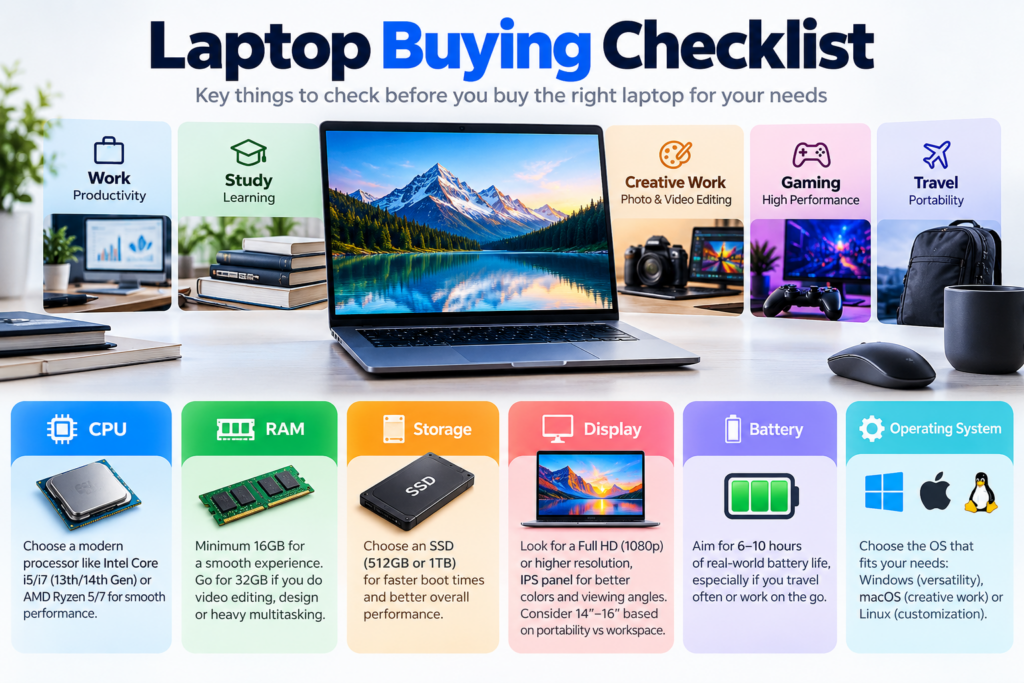
Before comparing specs, take a step back and think about how you’ll actually use the machine. This single step prevents the two most common buying mistakes: overspending on power you’ll never use, or under-spending on a laptop that can’t keep up with your workload.
Ask yourself a few questions. Do you need something lightweight to carry between classes or coffee shops? Or will this laptop live mostly on your desk, handling demanding creative or technical work? Are you editing video, or mostly checking email and streaming shows?
Your answers will immediately narrow the field. A student who writes papers and browses the web has very different needs than a video editor rendering 4K footage. Defining your workflow first means you can skip the specs that don’t apply to you and focus your budget where it counts.
Evaluating Processor Performance
The processor, or CPU, is the brain of your laptop. It determines how quickly applications open, how smoothly your system processes data, and how well it handles multiple tasks at once. Most laptops ship with chips from Intel or AMD, while MacBooks use Apple’s own custom silicon.
Understanding Core Counts and Clock Speeds
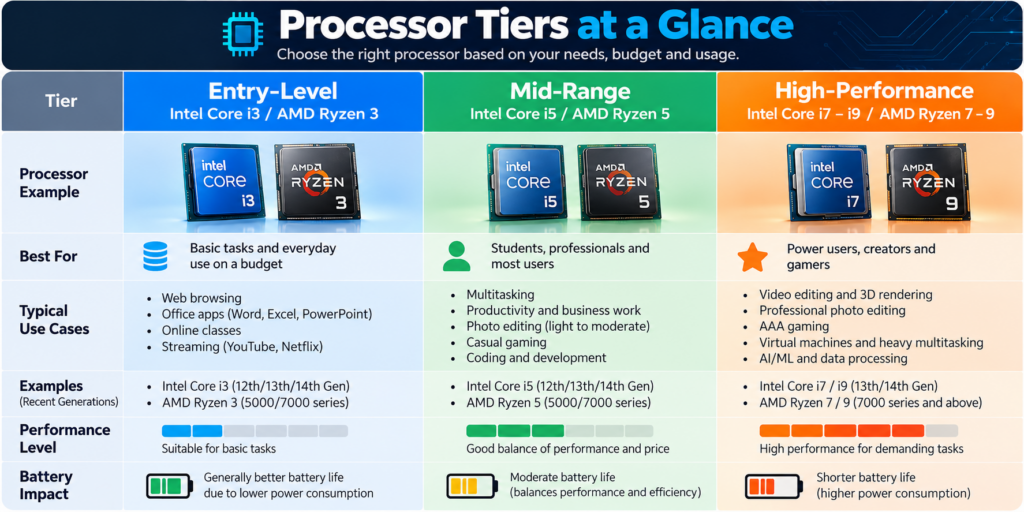
If your daily routine involves web browsing, word processing, and streaming video, an entry-level processor like an Intel Core i3 or AMD Ryzen 3 will handle it just fine. Step up to photo editing, light video work, or heavier multitasking, and you’ll want at least a Core i5 or Ryzen 5 — these mid-range chips strike a solid balance between speed and energy efficiency.
For professional workloads — think video editing, software development, or 3D rendering — prioritize high-end chips like the Core i7/i9 or Ryzen 7/9. These processors pack more cores, which lets them handle demanding software without bogging down. One trade-off worth remembering: more processing power generally means shorter battery life, so if you’re frequently working on the go, weigh performance against efficiency.
The Importance of RAM and Storage
RAM and storage are two of the most misunderstood specs — and two of the most important.
Why RAM Matters More Than You Think
Random Access Memory (RAM) holds the data for programs you’re currently using. Picture it as desk space: a bigger desk lets you keep more documents open at once without having to clear things away. For most users, 8GB of RAM is the bare minimum. If you tend to keep dozens of browser tabs open or run complex software like editing suites, 16GB will give you noticeably smoother performance.
How to Choose the Right Laptop Between HDD and SSD
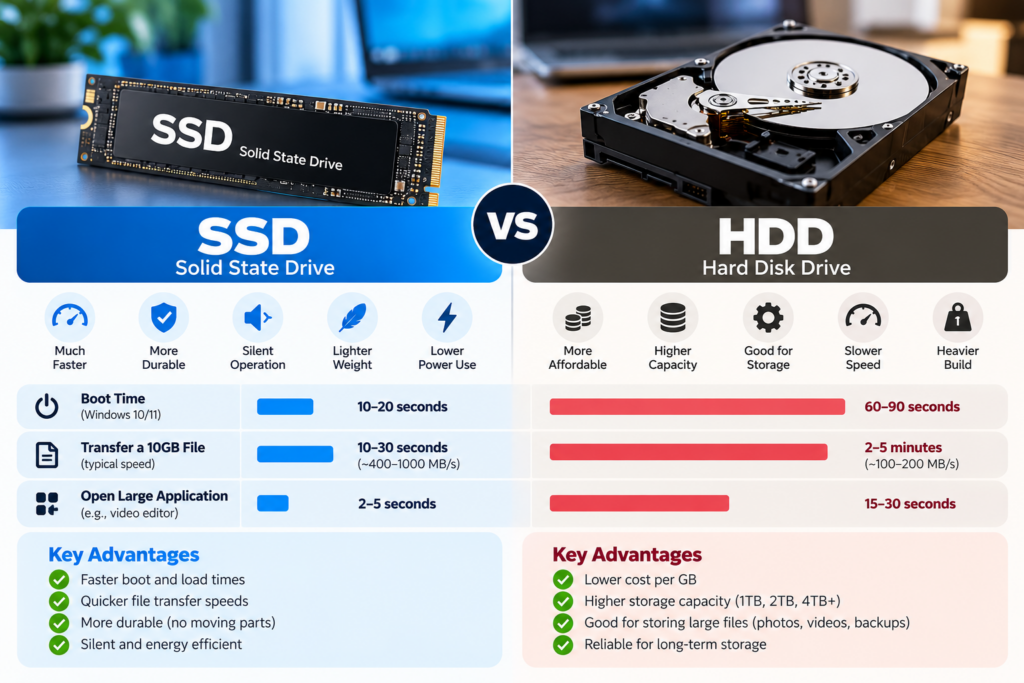
Solid State Drives (SSDs) have replaced traditional Hard Disk Drives (HDDs) in nearly every modern laptop, and for good reason. SSDs are significantly faster, quieter, and more durable since they have no moving parts. When comparing Infographic for How to Choose the Right Laptop, comparing entry-level, mid-range, and high-performance Intel Core and AMD Ryzen processors by performance, typical uses, workloads, and battery impact.
storage specs, always confirm the laptop includes an SSD — even a smaller 256GB or 512GB SSD will feel far more responsive than a large, slow mechanical drive.
Display Quality and Portability
You’ll interact with your laptop’s screen more than any other component, so it’s worth getting right. Look for a resolution of at least 1920 x 1080 (Full HD) — anything lower tends to produce blurry text and pixelated images.
Brightness and Color Accuracy
If you often work near windows or outdoors, look for a screen rated at 300 nits of brightness or higher. Color accuracy matters most for creative professionals — check the specs for sRGB or DCI-P3 color gamut coverage to make sure what you see on screen matches the true colors of your work.
Finding the Right Balance of Size and Weight
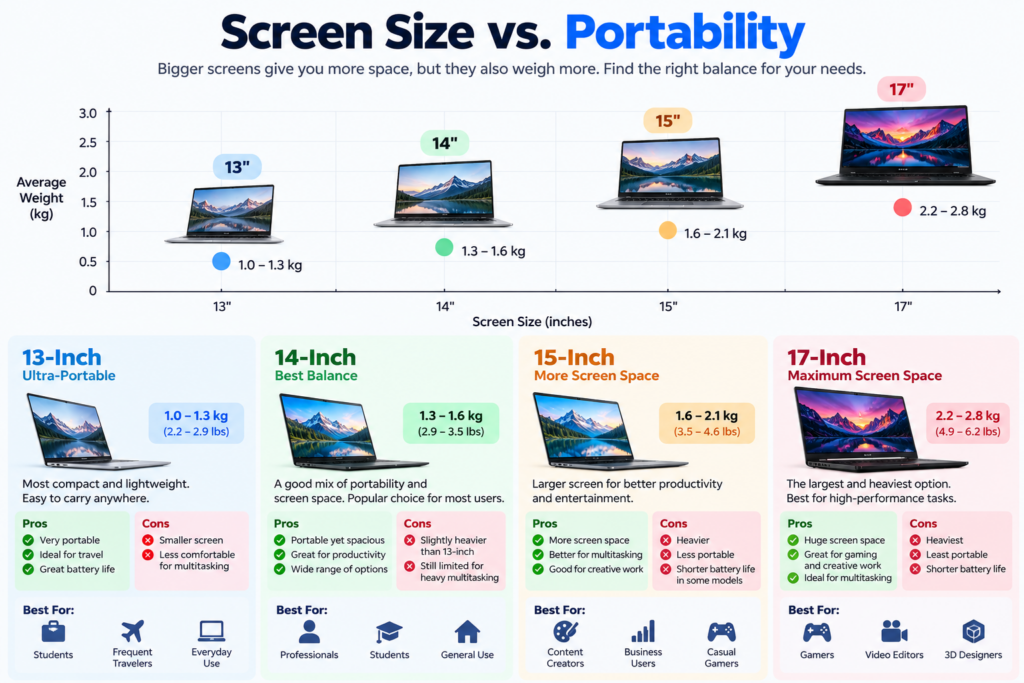
Portability rounds out the display conversation. A 13-inch or 14-inch screen is typically the sweet spot for commuters and frequent travelers. If you need a larger display for multitasking or gaming, expect to carry a heavier machine — 15-inch and 17-inch models usually trade portability for extra screen real estate.
Battery Life and Build Quality
Manufacturer battery life claims are usually based on ideal conditions — low screen brightness, minimal background activity. In real-world use, expect somewhat less than the advertised number. If all-day battery life is a priority, look for independent reviews that specifically test longevity during everyday tasks like web browsing or video playback.
Build quality affects How to Choose the Right Laptop which holds up over time. Metal chassis, particularly aluminum, tend to resist dings and wear better than plastic. Plastic laptops are often more budget-friendly but may flex or crack with heavy use. Think honestly about How to Choose the Right Laptop how much wear and tear your laptop will face before settling on a build material.
Operating Systems: Windows, macOS, or ChromeOS
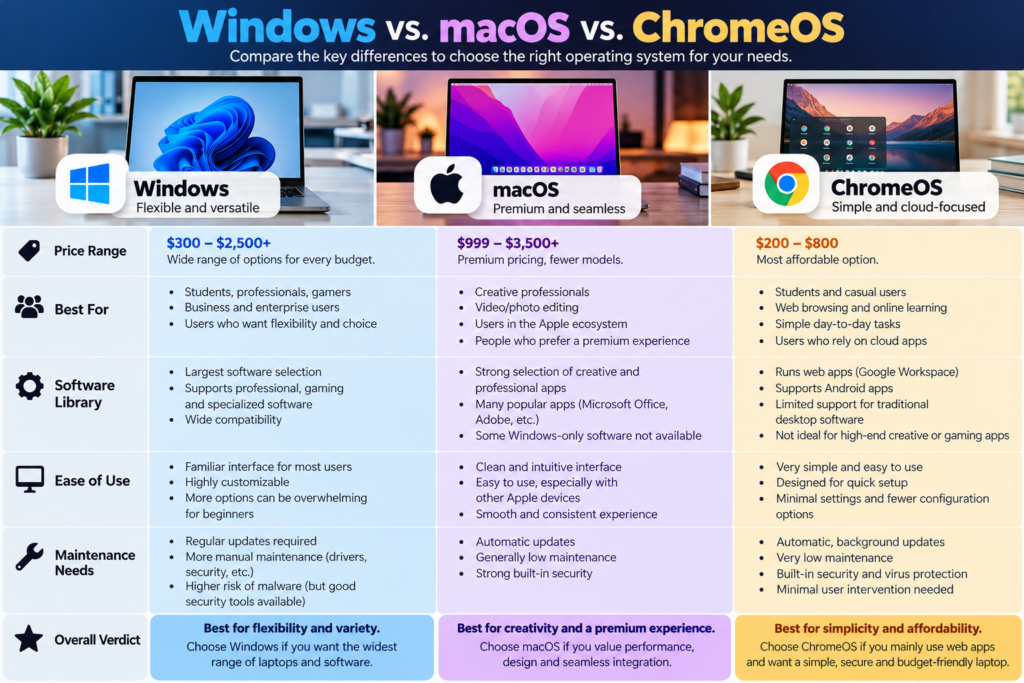
Your operating system shapes software compatibility and your overall day-to-day experience.
Windows is the most versatile choice, offering the widest range of hardware options and software support. It remains the standard for most business and gaming environments.
macOS stands out for its stability, smooth integration with other Apple devices, and polished hardware design. It’s a favorite among creative professionals, though it comes at a premium price.
ChromeOS is a lightweight, browser-based system found on Chromebooks. It’s an excellent fit for students or anyone who spends most of their time online, thanks to its affordability, security, and low-maintenance design.
Making the Final Call
Choosing How to Choose the Right Laptop laptop comes down to finding where your budget and your functional needs intersect. Focus on the essentials — a reliable processor, sufficient RAM, a high-quality display, and a build that matches your lifestyle — and you’ll be able to narrow the overwhelming laptop market down to a handful of solid candidates.
Before you check out, read professional reviews and look for real user feedback on long-term reliability. Take the time to assess your needs honestly, and you’ll end up with a machine that serves you well for years. If you want to dig deeper into specific components, browse our other hardware guides to see how individual parts affect overall system performance.
Frequently Asked Questions
How much RAM do I actually need for everyday use?
For basic tasks like browsing and word processing, 8GB is enough. If you multitask heavily or run demanding software, 16GB is a safer bet for long-term smooth performance.
Is it worth paying extra for an SSD over an HDD?
Yes. SSDs are faster, quieter, and more durable than HDDs. Even a smaller-capacity SSD will outperform a larger mechanical drive in day-to-day responsiveness.
What screen size is best for a laptop I’ll carry often?
A 13-inch or 14-inch screen offers the best balance of usability and portability for commuters and travelers.
Does a higher-end processor always mean a better laptop?
Not necessarily. High-end chips like the Core i7/i9 or Ryzen 7/9 are built for demanding tasks like video editing, but they tend to consume more battery. For everyday use, a mid-range processor often offers better overall value.
Read more The best Earbuds for the best Laptop