

A Student Buying Guide
Picture this: it’s week three of the semester, you’re in a packed lecture hall, and your laptop flashes a 5% battery warning. Your charger is back in the dorm. The professor just moved on to the one topic that’s definitely on the midterm.
If you’ve ever been there, you already know a laptop can help you or quietly hold you back.
The problem is that most buying advice treats every student the same. A history major and a mechanical engineering major don’t need the same machine, yet they often end up shopping from the same “best laptops” list. One overspends on power they’ll never use. The other buys something too weak and fights lag during every project.
This guide fixes that. Below, you’ll find what actually matters for each type of major, what to skip, and how to stay on budget. Specs change fast, so treat the numbers here as solid starting points and check current reviews before you buy.
Start With What Every Student Needs
Before we get into majors, a few basics apply to almost everyone.
Portability
You’ll carry your laptop between the dorm, lecture halls, the library and coffee shops. A heavy machine tends to stay in your room, which defeats the point.
If you’ll bring it to class every day, look for something around three pounds or lighter. A 13- or 14-inch screen is the sweet spot for most students: big enough to multitask, small enough for a cramped lecture desk.
Battery life
Aim for a laptop that can realistically get through a full day of classes. Manufacturers often quote best-case numbers, so check independent reviews that test battery life under normal use, like note-taking, browsing and streaming. A laptop that lasts 8 to 10 real hours (varies significantly by workload, operating system)is a great target.
RAM and storage
If your budget allows, 16GB of RAM is a smart choice for nearly any major today, because modern browsers and apps can use a lot of memory. 8GB can still work for light use, but it leaves less breathing room over four years. For storage, 256GB works for basic needs, and 512GB is more comfortable.
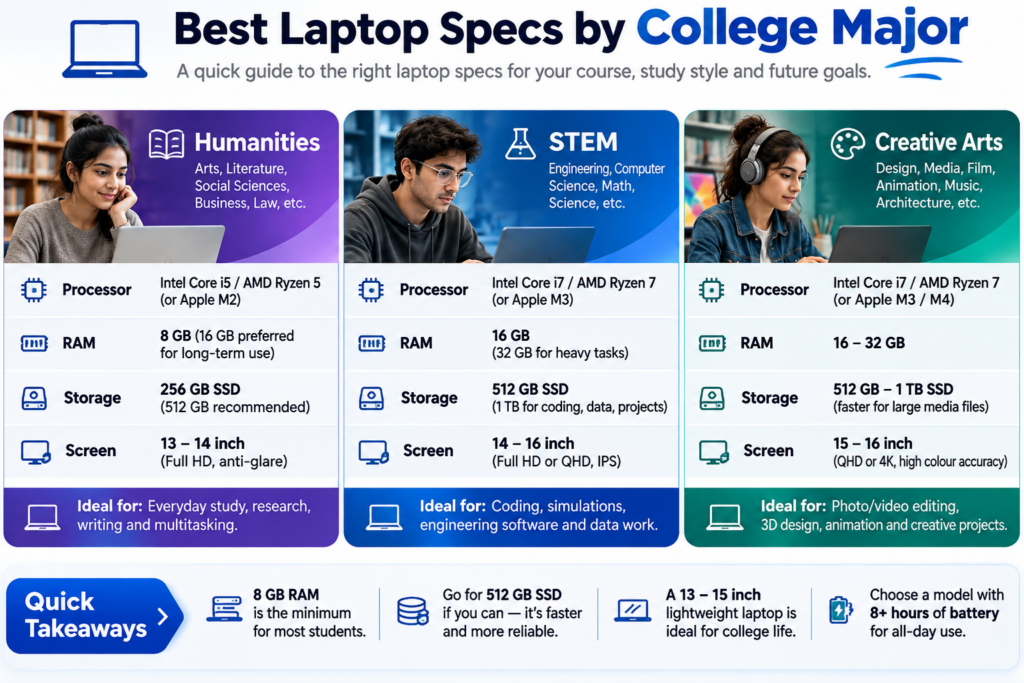
Humanities and Social Sciences (English, History, Sociology, Political Science)
If you spend your days reading, writing and researching, you don’t need a powerhouse. You don’t need a dedicated graphics card, and you can skip top-tier processors.
What matters more is how the laptop feels to use:
- A comfortable keyboard. You’ll type thousands of words. Good key travel makes a real difference.
- A sharp screen. Crisp text is easier on your eyes during long reading sessions.
- Reliable battery life. You’ll be taking notes for hours at a time.
A mid-range processor, such as an Intel Core i5 or AMD Ryzen 5 class chip, handles word processors, research databases and dozens of browser tabs just fine. Put the money you save toward a better screen or keyboard.
STEM and Engineering (Engineering, Computer Science, Physics, Math)
These majors lean on heavier software: simulations, code compilers, virtual machines and tools like MATLAB. Here, processing power and memory matter more.
- Processor: Look for an Intel Core i7, AMD Ryzen 7 or an equivalent modern chip.
- RAM: 16GB is a practical baseline. If you’ll run virtual machines or large datasets, consider 32GB or a model with upgradeable memory.
- Storage: 512GB or 1TB keeps large software installs and project files close at hand.
- Ports: Computer Science students in particular may want a good selection of ports for external monitors and hardware.
Check before you buy: Some engineering programs require software that only runs on Windows. Look at your department’s website or ask an advisor before choosing macOS.
Additional Factors to Consider Before Buying a College Laptop
Choosing a laptop for college involves more than comparing processor speed, RAM and storage. You should also consider repairability, upgradeability, webcam quality, charging options and software compatibility. These factors can significantly affect how useful your laptop remains throughout your college years.
1. Suitable Laptop Configurations and Budget by Major
Different academic disciplines have different computing requirements. Here are some practical configurations to consider:
| College Major | Recommended Configuration | Suggested Budget (USD) |
|---|---|---|
| Humanities | Intel Core i3/Core 5 or AMD Ryzen 3/5, 8–16GB RAM, 256–512GB SSD, Full HD display | $400–$700 |
| STEM and Engineering | Recent Intel Core 5/Core 7 or AMD Ryzen 5/7, 16–32GB RAM, 512GB–1TB SSD | $700–$1,200 |
| Creative Arts | Intel Core 7 or AMD Ryzen 7, Apple M-series or equivalent, 16–32GB RAM, 512GB–1TB SSD, colour-accurate display | $900–$1,600+ |
These are indicative configurations and budget ranges, not fixed requirements(clarify latest prices before you buy). Actual prices depend on the country, manufacturer, specifications and ongoing discounts. Students using demanding 3D modelling, video editing or engineering applications may need more powerful hardware.
2. Don’t Choose a Processor by Its Name Alone
Processor labels such as Intel Core i5, Core i7, AMD Ryzen 5 and Ryzen 7 do not tell the complete performance story. Different generations and processor families can have substantially different capabilities, even when they share similar model names.
Before purchasing, compare recent independent benchmarks for the exact processor model. Pay attention to single-core performance, multi-core performance, integrated graphics, power efficiency and sustained performance under heavy workloads. A newer mid-range processor can sometimes outperform an older premium processor.
3. Check Repairability and Upgradeability
A laptop should ideally last throughout your college education and beyond. Before buying, check whether its RAM and SSD can be upgraded, whether the battery can be replaced and whether spare parts are readily available.
Some thin and lightweight laptops have soldered RAM or storage, which makes future upgrades difficult or impossible. Choosing a model with accessible components and reasonable repair costs can help extend its useful life and reduce long-term ownership expenses.
4. Don’t Overlook Webcam Quality and USB-C Charging
Online lectures, virtual interviews, group projects and video meetings make webcam quality more important than ever. Look for a good-quality 1080p webcam, clear microphone performance and useful privacy features.
USB-C charging is another convenient feature. It can allow you to use a compatible charger for your laptop, tablet and smartphone. However, check whether the laptop supports USB-C Power Delivery and whether the included or recommended charger provides sufficient wattage. Not every USB-C port supports charging.
5. Check Software Compatibility Before Choosing an Operating System
Hardware is only one part of the decision. Some creative software and engineering tools have different levels of compatibility across Windows, macOS and ARM-based laptops.
For example, certain engineering, CAD, simulation and specialised university applications may require Windows or specific Windows-compatible hardware. Some creative applications work particularly well on macOS, while others have Windows-only features or different capabilities on ARM processors.
ARM-based laptops can offer excellent battery efficiency, but not every application, driver, plugin or peripheral works identically on ARM and traditional x86 processors. Before purchasing, check the official system requirements for the software used in your course. Also confirm whether the application supports your intended operating system and processor architecture, including any limitations involving emulation or virtualisation.
The bottom line: Choose a laptop that supports your actual academic software, offers enough performance for your coursework and can remain useful for several years. A slightly more expensive laptop with better compatibility, repairability and upgrade options may provide better long-term value than the cheapest available model.
Creative Arts and Design (Graphic Design, Video, Animation, Photography)
Creative majors tend to have the most demanding needs, and the screen is where you should start.
- Display: Look for strong color coverage, ideally close to 100% sRGB. If you do color-critical work, a high-quality OLED or IPS panel is worth considering.
- Graphics: For video editing, 3D work and animation, a dedicated GPU, such as an NVIDIA GeForce RTX card, helps a lot with software like Adobe Premiere Pro or DaVinci Resolve.
- Cooling: Powerful laptops can slow down when they overheat. Independent reviews often test this, so look for mentions of sustained performance.
- Storage: Media files add up quickly. Plan for at least 1TB, or budget for a fast external drive.
Windows, macOS or ChromeOS?
There’s no single winner. Here’s how each one tends to fit:
- Windows offers the widest range of hardware, prices and software compatibility. If your major needs specific programs like AutoCAD, it’s often the safest choice.
- macOS is popular with creative students and anyone already using an iPhone or iPad. MacBooks have a reputation for strong build quality and long battery life, but they cost more and are harder to upgrade or repair.
- ChromeOS works well if almost everything you do happens in a web browser. Chromebooks are affordable and simple, but they won’t run specialised desktop software.
How to Balance Performance and Budget
You don’t need the most expensive model. Write down your must-haves, like weight, battery life and the specs for your major. Then list the nice-to-haves.
A few ways to save without regret:
- Consider last year’s model. Previous-generation laptops are often discounted and still perform well for student work. Compare benchmarks and reviews to confirm.
- Use education discounts. Apple, Dell, Lenovo and others offer student pricing. Check their education stores, and confirm current terms.
- Skip features you won’t use. A 4K screen on a 13-inch laptop can drain the battery faster without adding much visible benefit. A sharp 1080p or 1200p display is plenty for most students.
Final Checklist Before You Buy
- Ask your department. Many schools publish laptop recommendations or software requirements for each program.
- Read independent reviews. Look for long-term testing, build quality notes and comments on customer support.
- Check the warranty and return policy. You’ll rely on this laptop for years, so know what happens if something fails.
- Think four years ahead. Extra RAM or storage now can save you from replacing the laptop early.
Conclusion
Your laptop is a tool, not a status symbol. The best one is the machine that fits how you study, what your major requires and what you can comfortably afford.
If you remember just three things: match the hardware to your coursework, prioritize battery life and weight for daily carrying, and confirm software requirements with your department before you spend a dollar. Do that, and you’ll walk into your first lecture ready for whatever comes next, hopefully with plenty of battery left.
Specs, prices and discounts change often. Please verify details with the manufacturer or retailer before purchasing.
Related reading:
- Bowers & Wilkins Pi8 vs Sony WF-1000XM6: The Ultimate Winner?
- Need help staying focused? See our guide to the [Bowers & Wilkins Pi8 True Wireless Earbuds Buying Guide
By techbuyguide | Last updated: November 18 2026, Editor’s Note
Prices, availability, specifications, and features can change. Always check the manufacturer’s or retailer’s current listing before purchasing. Recommendations are based on researched specifications and independent reviews; TechBuyGuide has not personally lab-tested every product listed.
support@techbuyguide.com
techbuyguide@hotmail.com
Disclosure : Some links on this page may be affiliate links. If you buy through them, we may earn a small commission at no extra cost to you. It never changes what we recommend.